




Blogging Basics and My Christmas Tree {because those two things go together}
Blogging Basics:
How to Add a Button/Badge to your Blog
How to Add Links to Words within a Post.

When I first started my blog I spent an unnecessary amount of time trying to figure out some blogging basics–so I thought I would save some of you some time.
For those of you who already know all these tips, feel free to add any other tips in the comment section that you think might be helpful to new bloggers.
Adding a button/badge to your blog sidebar:
Have you ever wondered how you can proudly display the badge/button of those blogs you love so much?
1. Highlight and copy the html code of the button you want to display {you will find the html code in a box right below the button}
2. Log in to your blogger account and go to your blog dashboard.
3. Click on the “design” tab
4. Click on the “Add a Gadget” tab found on your sidebar
5. Click on the ” html/javascript” tab.
6. A text box will appear. Paste the html code in that box. Click “save”.
7. You should see your new html gadget on your right sidebar at the top. You can click and drag it wherever you want it on your blog.
8. Click “save” at the top of your dashboard, and that’s it!
Add a button to a post or page:
1. Highlight and copy the html code of the button you want to display {you will find the html code in a box right below the button}
2. Log in to your blogger account and go to your blog dashboard.
3. Create a “new post”.
4. At the top of the post you will see a “compose” tab and an “html” tab. Click on the “html” tab.
5. Paste the html code of the button in this section. Click back on the “compose” tab, and you should see your new button within your post.
*You can follow this same process to add buttons to your pages. For example, I followed this process to add buttons to my “Where I Party” page.
Feel free to test this out with the
Little Miss Momma button, *wink*
Little Miss Momma button, *wink*
Creating a word link:
This is super simple.
After you have typed your post, highlight the word you want to be a link.
With the word highlighted, click on the blue “link” tab at the top of your post. A box will pop up. Paste the link in that box and click “ok”. If you do this correctly, the word you linked should be blue now.
For example:
Click HERE, to visit the “Best of Little Miss Momma”
~~~~~~~~~~~~~~~~~~~~~~~~~~
On another note…
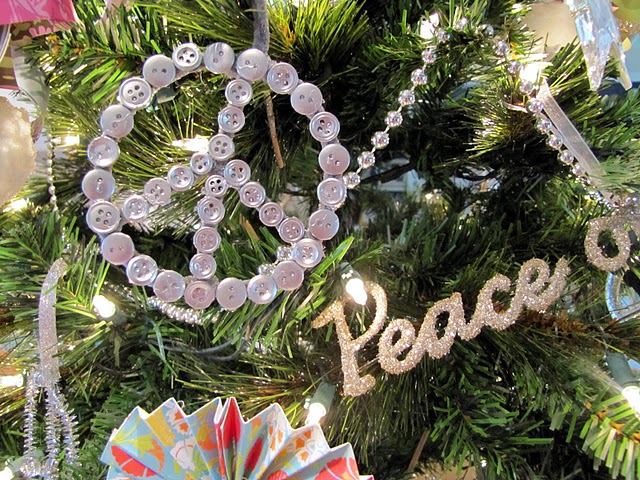
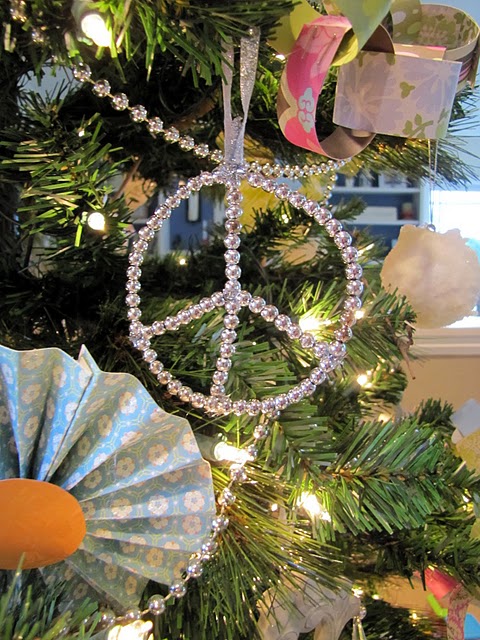
Let’s Play, guess the theme of Ashley’s Christmas tree, shall we?!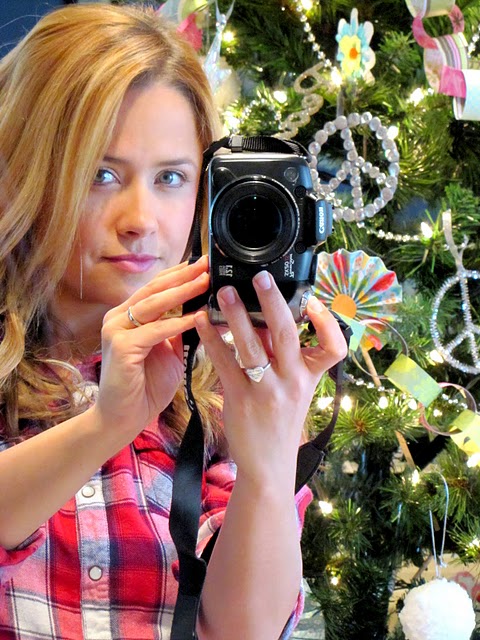
With the word highlighted, click on the blue “link” tab at the top of your post. A box will pop up. Paste the link in that box and click “ok”. If you do this correctly, the word you linked should be blue now.
For example:
Click HERE, to visit the “Best of Little Miss Momma”
~~~~~~~~~~~~~~~~~~~~~~~~~~
On another note…
Let’s Play, guess the theme of Ashley’s Christmas tree, shall we?!


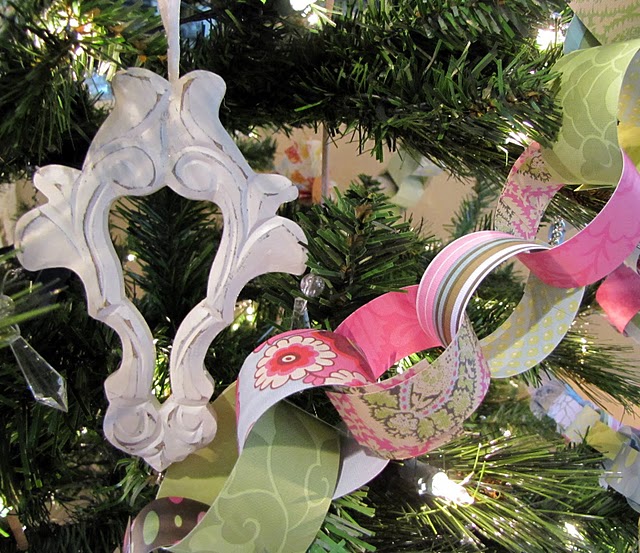
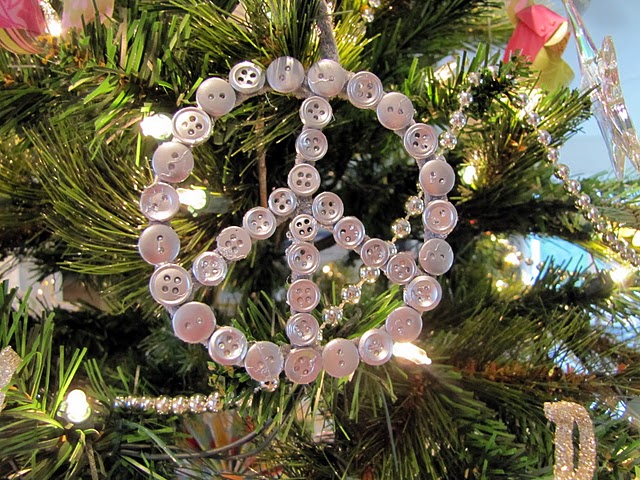
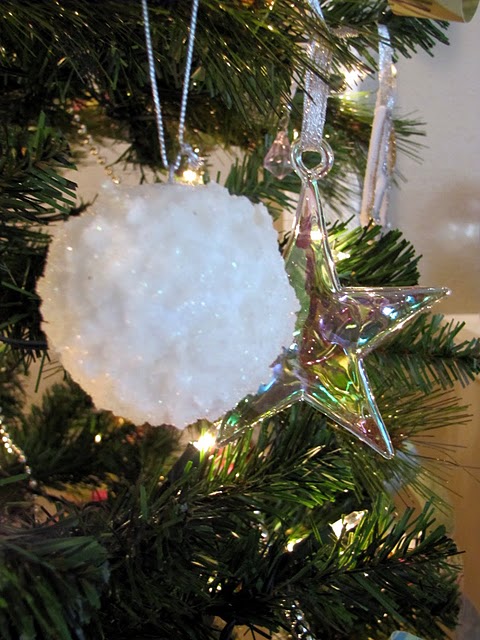
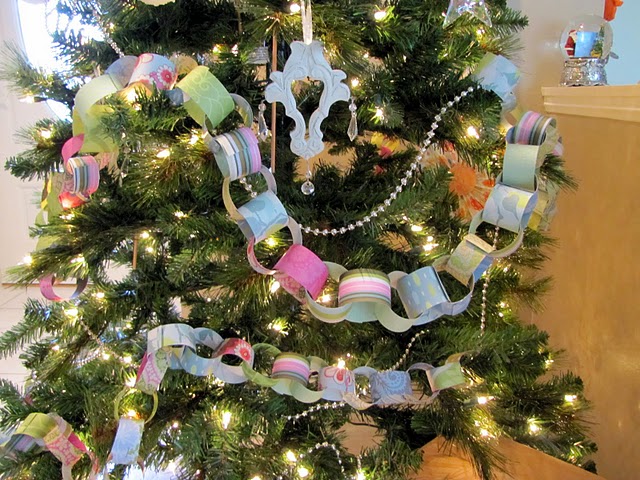
It’s back to the basics of paperchains when you have a toddler who insists on eatting all the ornaments–so much for my pretty tree of years past {sigh}.
And YES, my craft collection did throw up on my Christmas tree this year, in case you were wondering.
And YES, my craft collection did throw up on my Christmas tree this year, in case you were wondering.
